Interface Tour
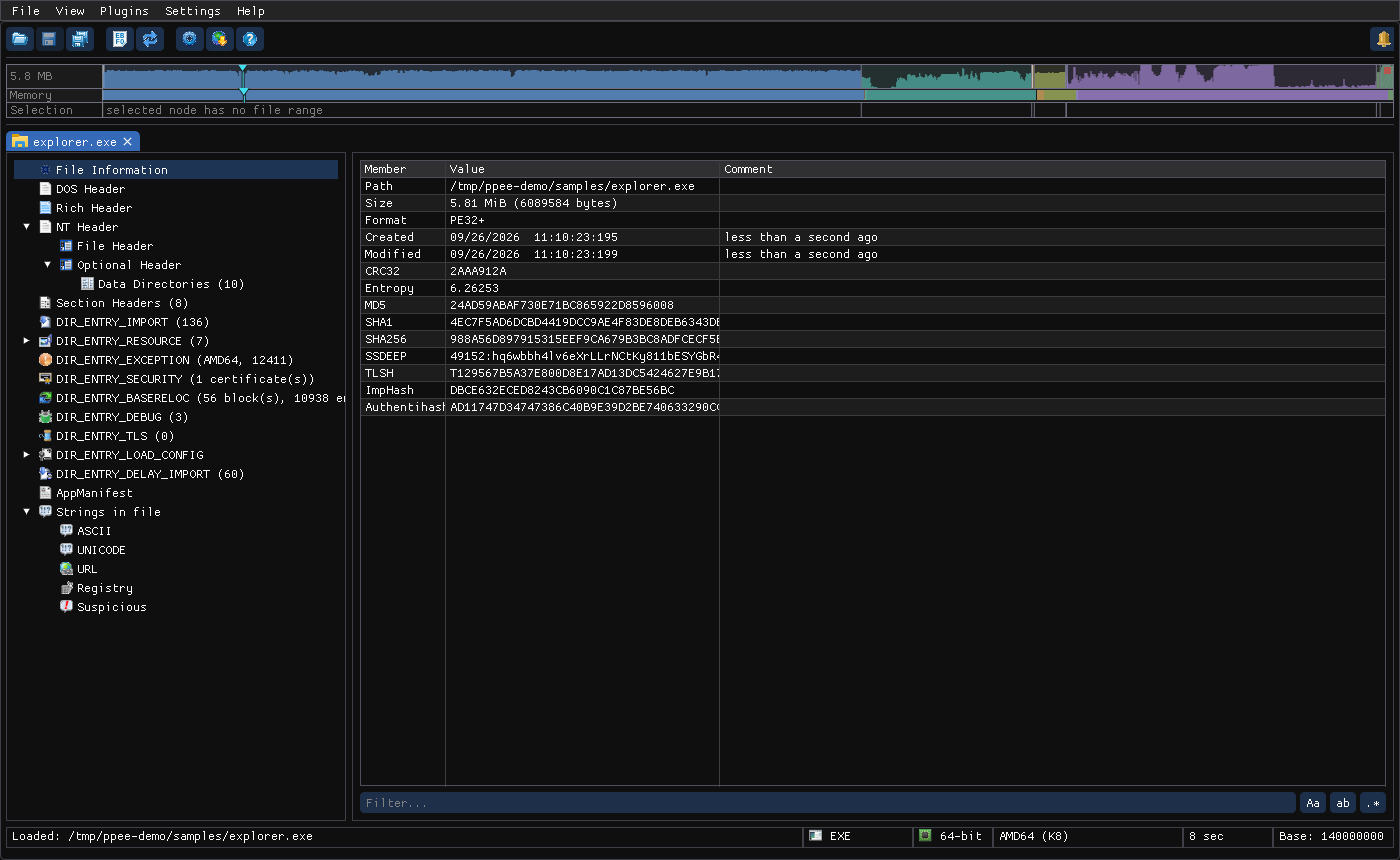
Linux screenshot: Annotated PPEE main window
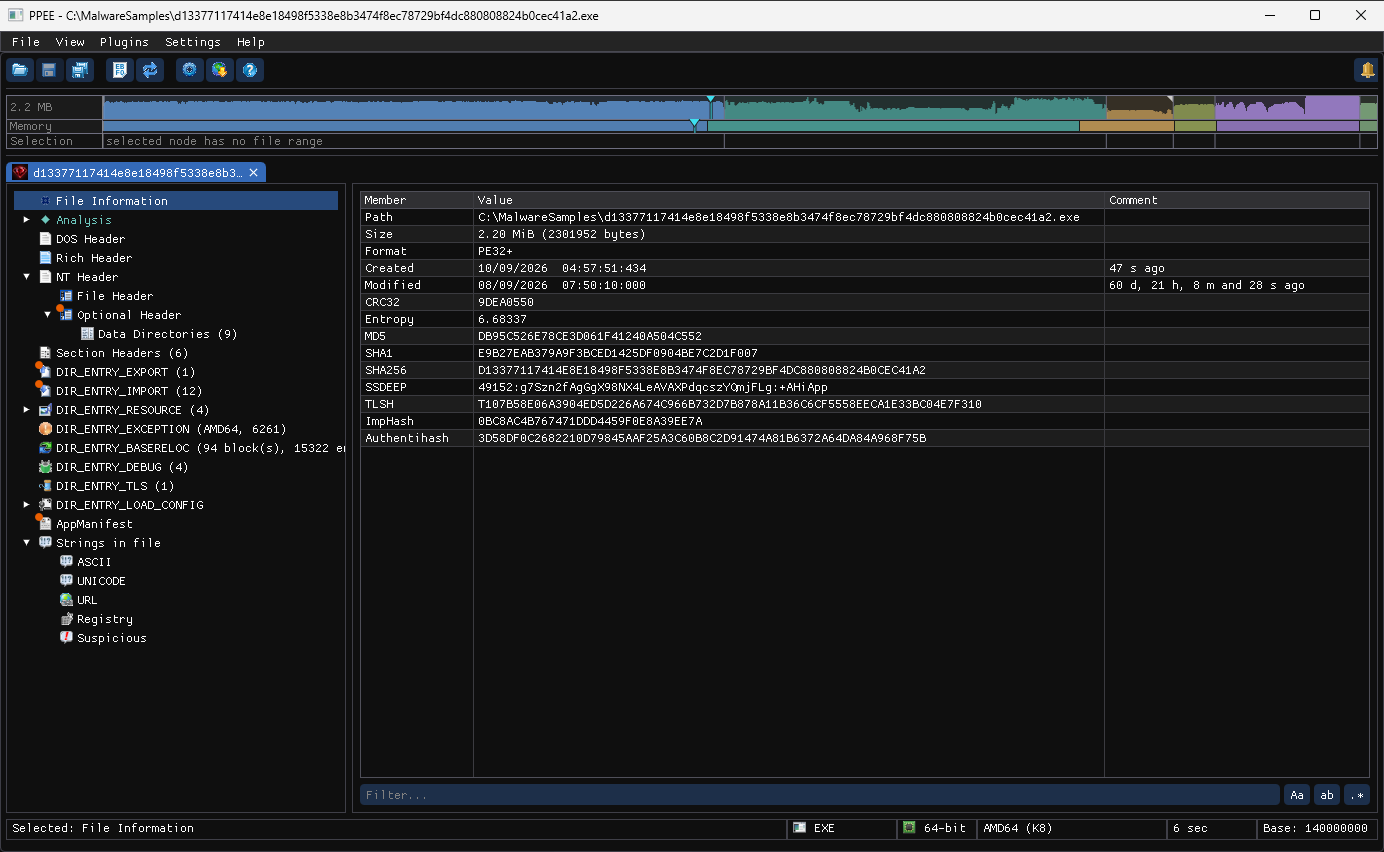
Windows screenshot: main window, a NativeAOT ransomware sample (File Information selected)
From top to bottom:
| # | Area | What it does |
|---|---|---|
| 1 | Menu bar | File, View, Plugins, Settings, Help |
| 2 | Toolbar | Open, Save, Save As, Hex Editor, Refresh, Settings, Check for Updates, About. The bell on the right opens similarity history |
| 3 | Navigator strip | Map of the file's physical layout with per-pixel entropy (File), memory layout (Memory) and the range of the selected node (Selection) |
| 4 | File tabs | One tab per open file; right-click for Close Other Tabs, Close Tabs to the Left/Right, Close All Tabs |
| 5 | Structure tree | Every structure in the file (see Tree & List Views) |
| 6 | Upper list view | Rows of the selected node (for example the imported modules) |
| 7 | Lower list view | Details of the selected upper row (for example that module's functions) |
| 8 | Filter bars | Filter each list, with toggles for case-sensitive (Aa), whole word (ab) and regular expression (.*) |
| 9 | Status bar | Last action, PE type (EXE / DLL / DLL(.Net) / driver), 32/64-bit, machine, section count, image base |
Menus
| Item | Action |
|---|---|
| Open… (Ctrl+O) | Open a file in a new tab. Linux uses the desktop file chooser (zenity) |
| Recent Files | Up to MaxCount recently opened files (settings) |
| Save (Ctrl+S) | Write pending edits back to the file (enabled after an edit) |
| Save As… (Ctrl+Shift+S) | Write the edited image to a new file |
| Close Tab | Close the current file. PPEE asks Save changes? if there are unsaved edits |
| Exit | Quit |
| Item | Action |
|---|---|
| Dark mode | Toggle dark and light theme |
| Always on top | Keep the window above others |
| Navigator strip | Show or hide the navigator strip |
| All directory lanes | Expand the strip to one lane per data directory |
| Hex View | Open the hex view/editor for the current tab |
| Item | Action |
|---|---|
| General… | General settings |
| Clustering… | Similarity engine settings |
| Shell Integration | Toggle Open in PPEE in Explorer or file managers (details) |
About (F1 or Alt+/; the menu shows F1) shows version and build details. You can copy them for bug reports.
Reserved for future plugin support. It currently shows (no plugins installed).
Opening files
- File → Open…, Ctrl+O, or the toolbar Open button
- Drag and drop one or more files onto the window
- Command line:
ppee path/to/file.exe - Shell integration: right-click → Open in PPEE (puppy) (set up)
- Double-click a path in the similarity history to open that file
The toolbar Refresh button (F5) rebuilds the tab's views from the file as it is in memory, unsaved edits included, and keeps the tab marked as modified. The selected tree node and table rows are selected again afterwards. Use it after an edit to re-derive every view (highlights, anomaly markers, analysis).
Refresh does not re-read the file from disk
To pick up changes made to the file outside PPEE (for example after a rebuild), close the tab and open the file again.