Hex View
The hex view shows and edits the same in-memory image as the rest of the GUI, so an edit made here shows up in every list view, and the reverse is true too. Open it with View → Hex View, the toolbar Hex Editor button, or Follow in Hex View from any row's context menu.
Linux screenshot: PPEE hex view
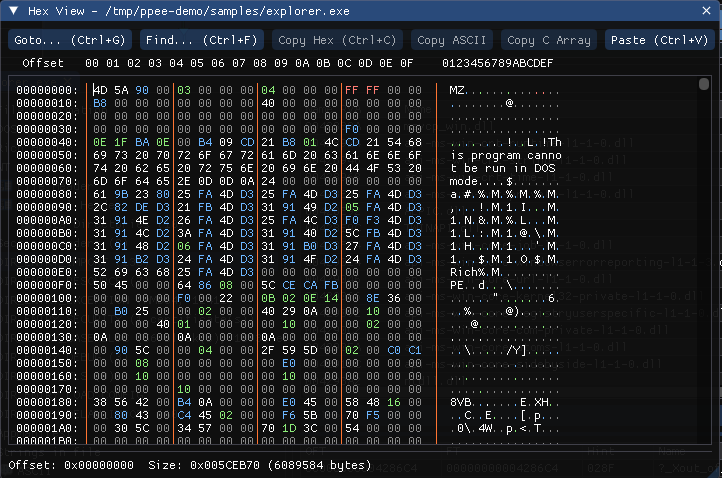
Layout and colors
Each line holds 16 bytes: offset: XX XX … XX ASCII. Byte values are colored so structure stands out:
| Color | Meaning |
|---|---|
| Gray | 00 |
| Red | FF |
| Blue | Other non-printable bytes |
| Normal text | Printable ASCII |
| Green background | Selection |
| Pink background | Edited bytes that aren't saved yet |
Thin orange separators split each line into 4-byte groups and mark the gap before the ASCII column. The caret position is mirrored on the navigator strip.
Navigation
| Key / action | Effect |
|---|---|
| Arrow keys, Page Up / Page Down | Move the caret |
| Home / End | Start / end of the row |
| Tab | Switch the caret between the hex and ASCII columns |
| Click and drag | Select a range |
| Shift + arrows, Home, End | Extend the selection from its anchor, one byte, row or row edge at a time |
| Ctrl+G Goto… | Jump to a file offset, or tick As RVA to jump to a relative virtual address |
| Ctrl+F Find… | Search hex bytes (4D 5A 90 00) or ASCII text; the search wraps around |
| F3 Find Next | Repeat the last search |
| Ctrl+D Show as Code | Disassemble from the selection or caret in the Code window. Bytes outside every section (overlay) decode raw |
Editing bytes
- Type hex digits in the hex column: each digit edits the nibble under the caret and advances.
- Type printable characters in the ASCII column: each one replaces a whole byte.
- Ctrl+V Paste Hex writes clipboard hex bytes at the caret or over the selection.
Edits stay in memory until you press Ctrl+S or choose File → Save / Save As…. See Editing & Saving.
Copying
| Command | Shortcut | Output |
|---|---|---|
| Copy Hex | Ctrl+C | 4D 5A 90 00 |
| Copy ASCII | - | MZ.. |
| Copy C Array | - | { 0x4D, 0x5A, 0x90, 0x00 } |
| Copy Offset | - | The caret's file offset |
| Select All | Ctrl+A | The whole file |
Hash and decode a selection
Right-click a selection:
- Hash Selection shows its MD5, SHA-1, SHA-256, CRC32, entropy, ssdeep and TLSH, each with a Copy button. Use it on a carved payload, a resource or a section to look it up or compare it, without saving it.
- Decode Selection… runs decode steps over the selection: type
xor:5A, base64, zlib(the steps ofdecode_bytes) and press Decode. The result shows as text, or as a hex dump, with its size, entropy and what it looks like (PE image (starts with MZ)). Type a text the plain bytes should contain (http,This program) and press Find Keys: every single-byte XOR/ADD/ROL key and repeating XOR key that reveals it is listed. Click one to add it to the steps and decode.
Walkthrough: a URL hidden with XOR
In the 12 KB downloader 106710ac….exe, .rdata has no readable URL. Select the section in the hex view, choose Decode Selection…, type https:// and press Find Keys: xor:B5 at +0x70 https://kidsko.s…. Click it: the selection is decoded with that key, and the address reads in the dump's ASCII column at 00000070.
Status line
The line under the bytes shows the caret offset, the selected range, and the selection length in hex and decimal, for example Length: 0x40 (64).
Follow in Hex View
Right-click a row or cell in any list view (headers, imports, exports, resources, relocations, debug, load config, .NET, manifest, …) and choose Follow in Hex View, or hover a cell and press Ctrl+H. The hex view opens with the bytes behind that cell selected and centered. It's the quickest way to answer "which bytes is this field?"
Related: Tree & List Views · CLI raw edits (RawOffset:)